Segments Overview
Last updated Mar 19th, 2026
Overview
Segments are cohorts, or subsets, of Contacts, Organizations, and Accounts that you can monitor and engage. You can manage tasks related to Segment Contacts, message Contacts, sync them with Salesforce, add them to Outreach sequences, and more.
Segments can also be used as filters across other views, such as Reporting, and to quickly identify the Accounts and Organizations where Contacts in your Segments are working.
Segments Page

The Segments page organizes all of your Segments and allows you to quickly switch between My Segments, Contact Segments, Organization Segments, and Account Segments. My Segments contains all Segments that you've created. You can quickly see recent Activity for your Segments, and manage multiple actions by hovering over the Segment.
Contact Segments contains all Contact Segments created by you or your teammates.
Organization Segments contains all Organization Segments created by you or your teammates.
Account Segments contains all Account Segments created by you or your teammates. Account Segments are built on your Salesforce Account records and are ideal for GTM teams monitoring a pipeline or book of business. (Requires Salesforce integration — HubSpot support coming soon. To enable, contact your CSM or email support@commonroom.io.)
Preview Segment details

When viewing your list of Segments, you can preview key information about each Segment by hovering over the Segment card. You can view:
- Segment details like who created it and when, how many auto-add/remove rules have been set, and how many Contacts or organizations are in the Segment.
- An Activity log that provides a summary of the most recent activity within your Segment. Click on the activity log to quickly open the full activity page for a Segment.
Add Segments to My Segments and Home
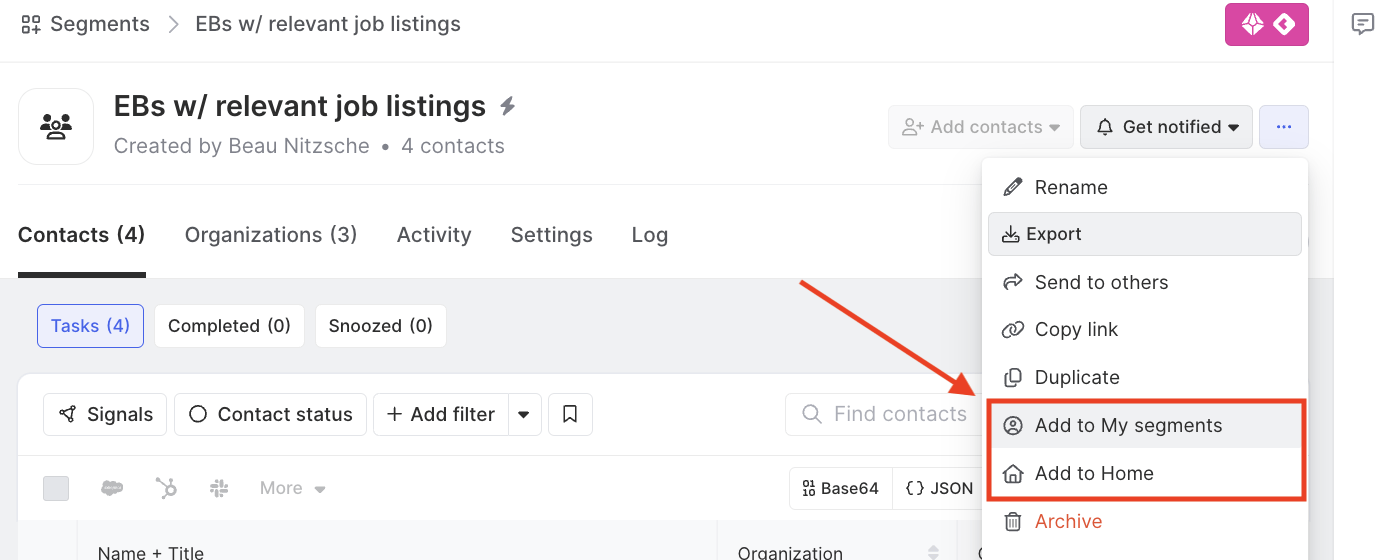
Segments can be added and removed from My Segments and Home by clicking on the options menu. This provides quick access to your most important Segments every time you open the Common Room home screen.
Ordering Segments on Home
Segments that have been added to your Home screen can be re-ordered by clicking the Edit Segment Layout button on the top right and dragging Segments into the order that you prefer.
Segment Contacts
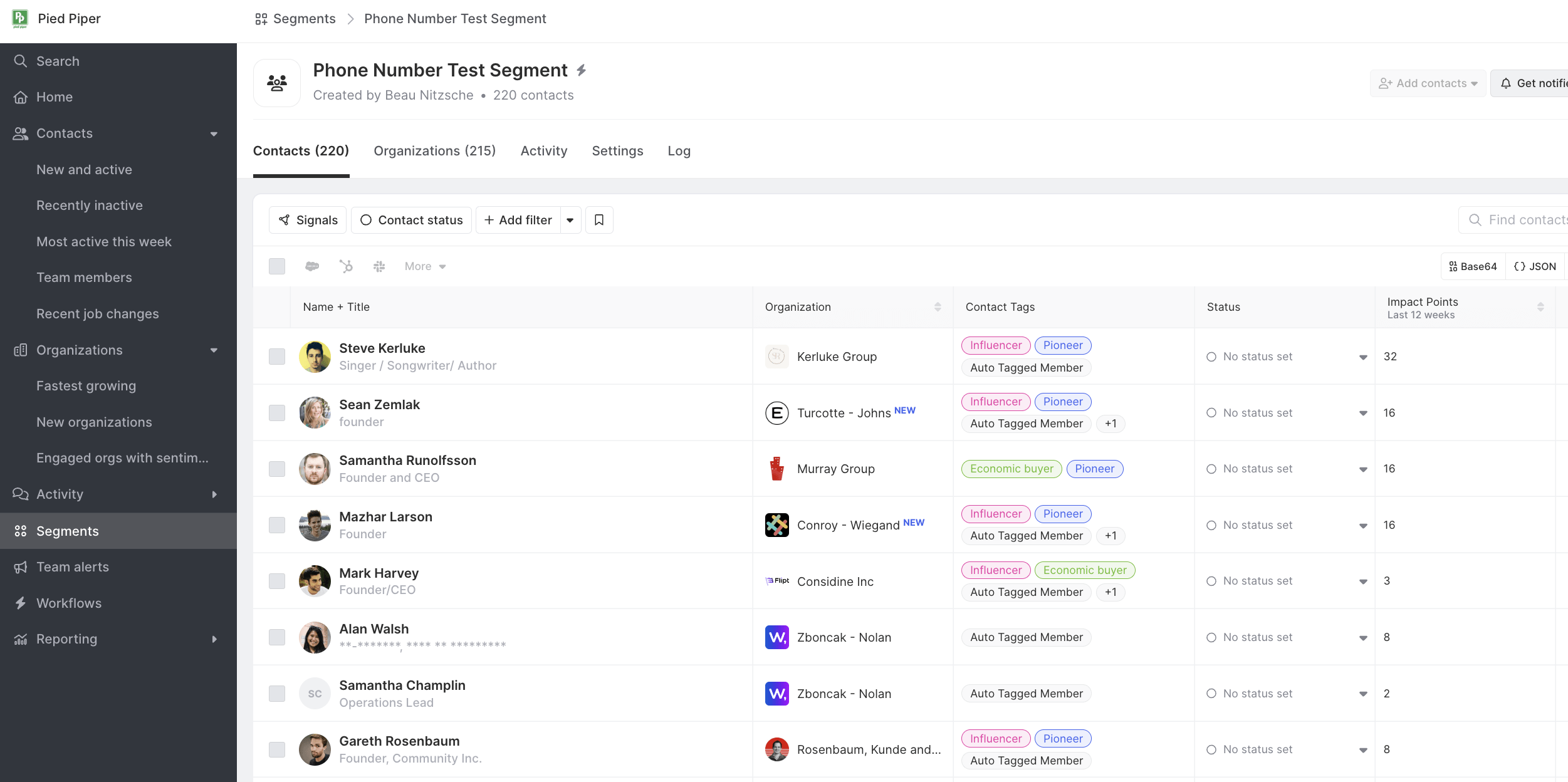
Similar to the Contacts page, the Contacts section of an individual Segment page enables you to explore and apply filters to better understand your Contacts.
Learn how to take action on Segment Contacts →
Customize Columns
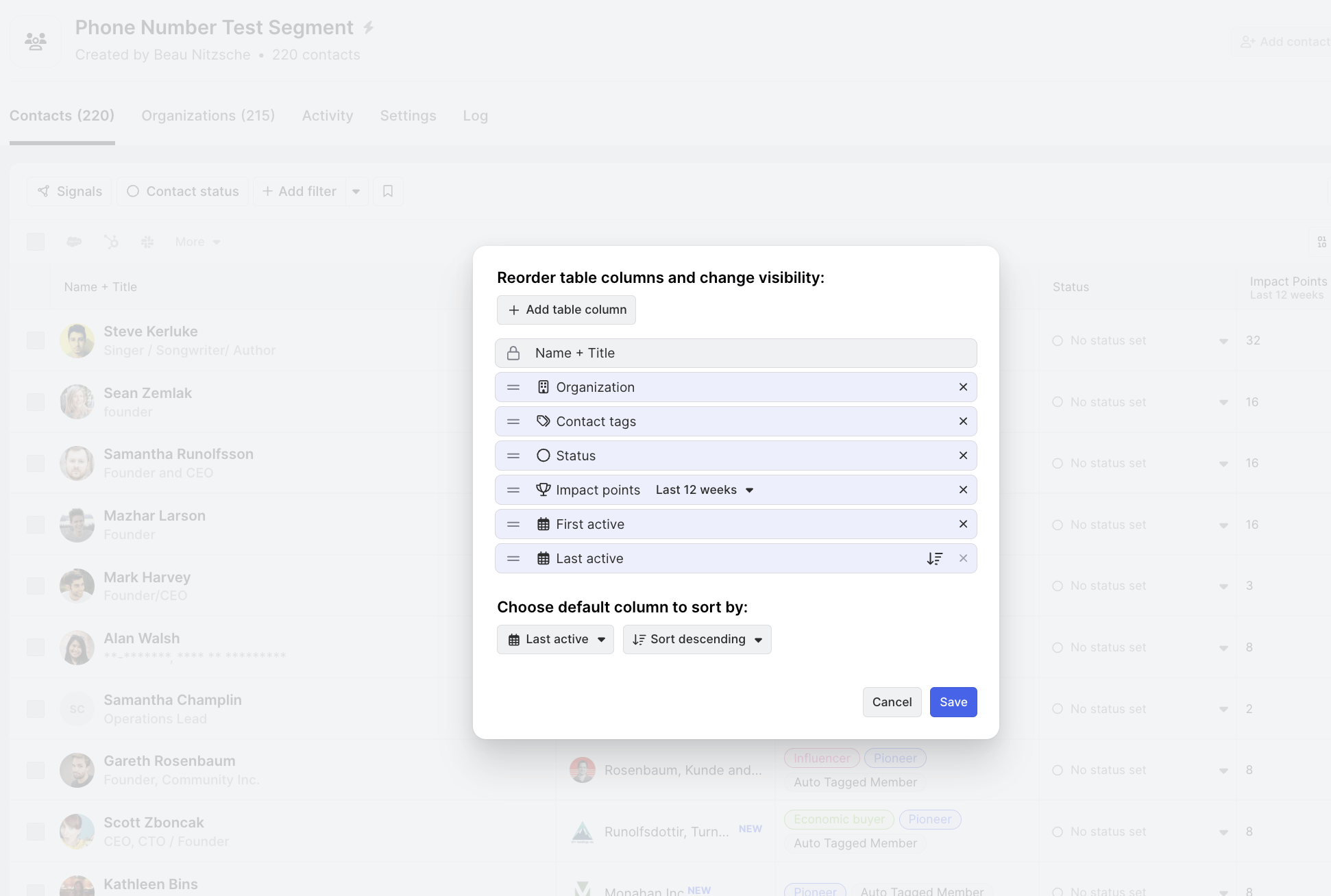
If you have Admin permissions in Common Room, you can customize the columns displayed when you're viewing a Contact, Organization, or Account Segment. To do this, click Edit columns at the top-right corner of the list.
For Account Segments, you can add columns from both standard Account fields (e.g., Account Owner, ARR, Opportunity Stage) and custom CRM object fields.
Keep in mind that any changes made to columns will apply to all teammates in Common Room.
Additionally, you can set a default column for sorting the list. Choose from available fields or filters, and specify whether you'd like the sorting to be in ascending or descending order.
Segment Organizations
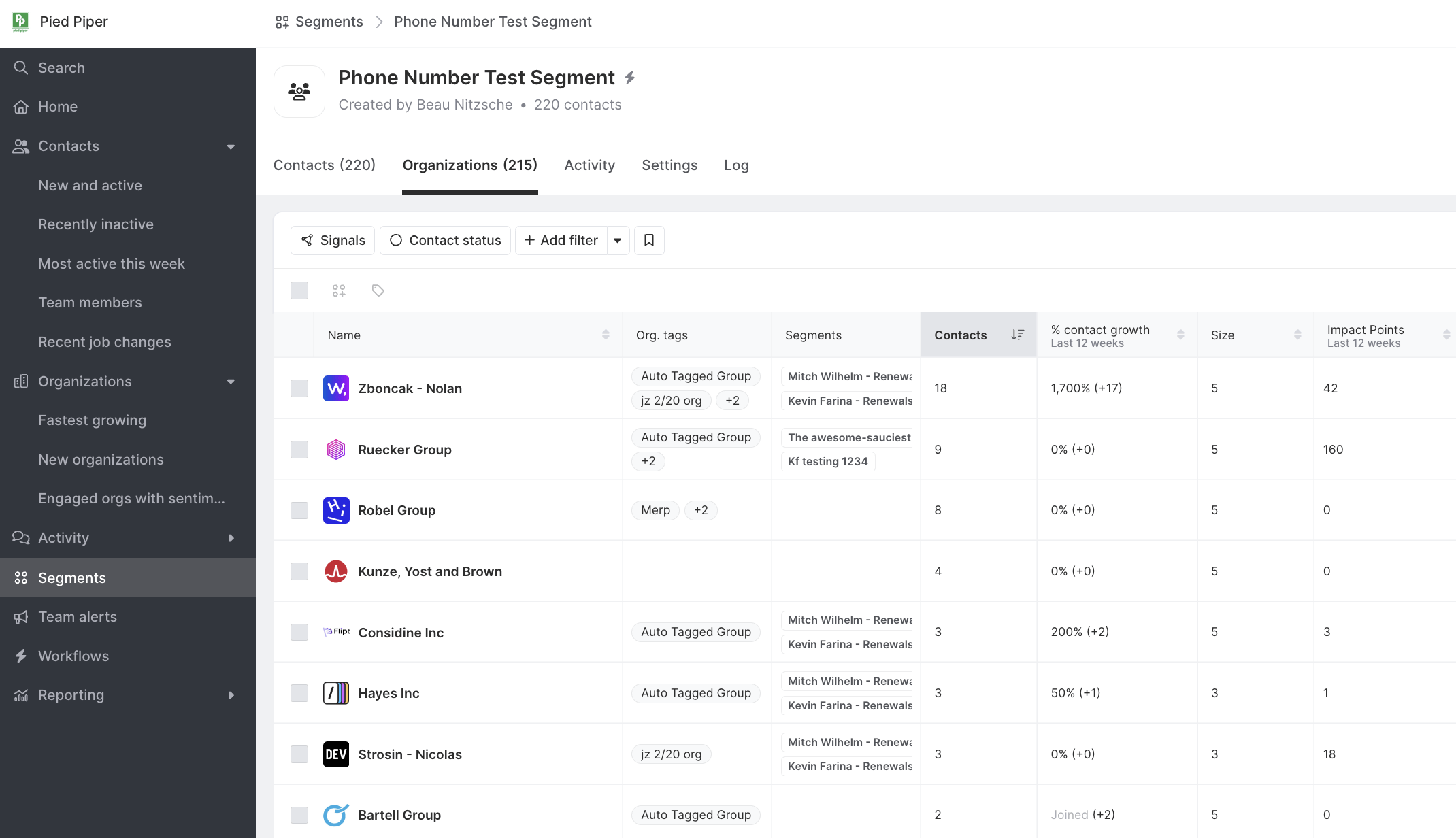
Similar to the Organizations page, the Organizations section of an individual Segment page enables you to explore and apply filters to better understand the Organizations associated with Contacts within a Segment. Learn how to take action on Segment organizations →
Segment Accounts
Account Segments work similarly to Organization Segments, but are built on your Salesforce Account records rather than Common Room's merged Organization objects.
When viewing an Account Segment, you can:
- Filter and sort Accounts within the segment using any available Salesforce field, signal filter, or firmographic attribute.
- View the Contacts associated with each Account in the segment, including labels for "current," "not in CRM," and "outdated" Contacts.
- Customize which columns are displayed for the segment.
- Take bulk actions on Accounts in the segment (e.g., export, apply tags).
Account Segments are especially useful for:
- Sales reps: Monitor a personal book of business, see which Accounts have recent signal activity, and surface warm Contacts to engage.
- Sales managers: Build a team-level Account view that can be divided per rep using Team Segments →.
- RevOps/CS: Track Accounts by stage, health, renewal date, or any Salesforce field combination.
To create an Account Segment, apply filters on the Accounts page → and click Create segment, or go to Settings → Segments → + New segment and choose Account. Account Segments require a Salesforce integration.
Segment Activity
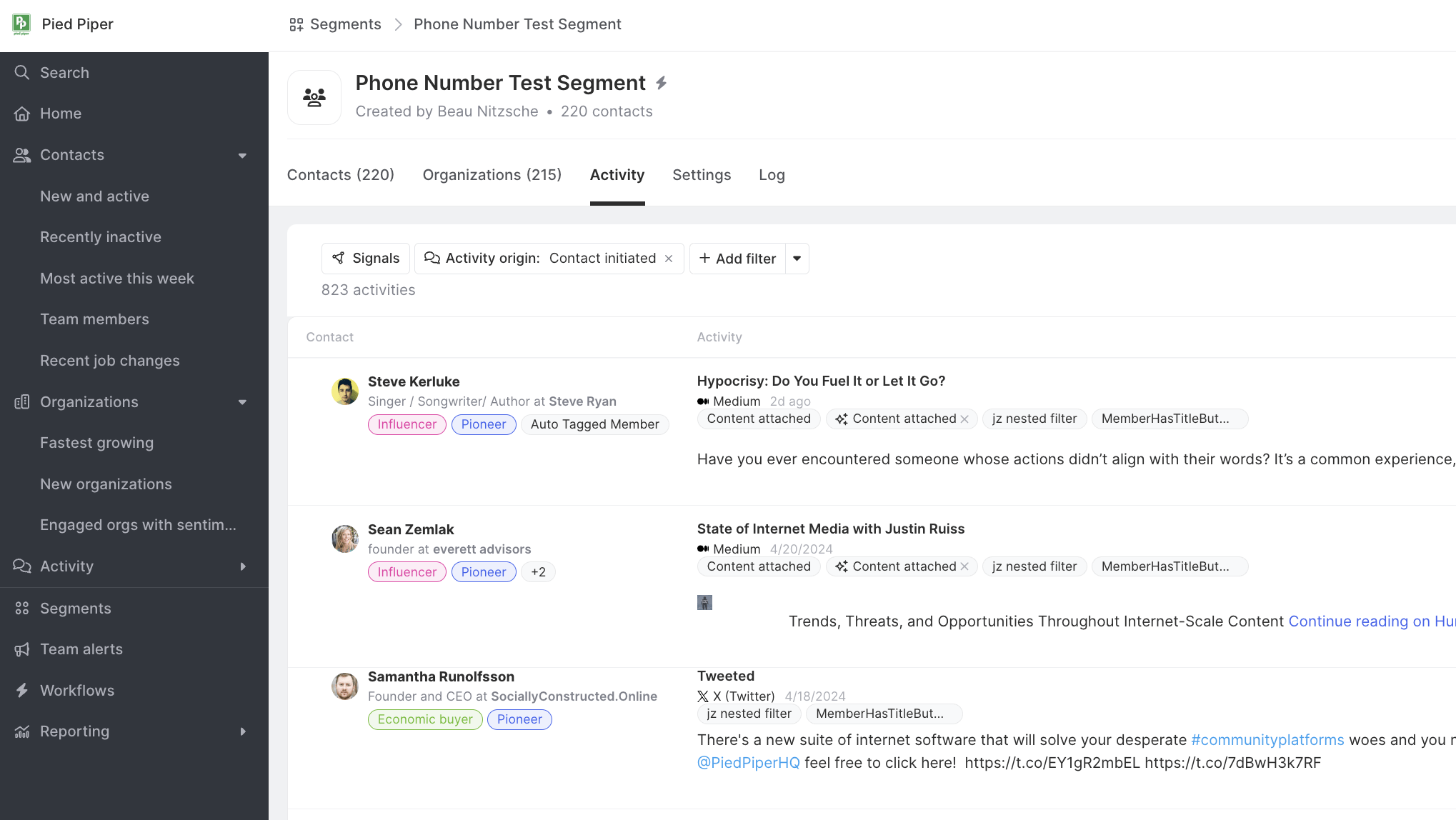
Similar to the Activity page, the Activity section of an individual segment page enables you to explore Activity by Contacts of the Segment. You can use filters to narrow down the Activity by any available filter or date range.
FAQs
If I choose to add a Contact from my Segment to a HubSpot Workflow or Salesforce Campaign, how long should it take for the Contact to be added?
You should see the contact added immediately to your HubSpot Workflow or Salesforce Campaign.
What is the difference between an Account Segment and an Organization Segment?
An Organization Segment is built on Common Room's enriched Organization objects, which auto-merge signals from multiple data sources into a unified company record. An Account Segment is built on Salesforce Account records, representing the commercial relationships your sales team manages. For GTM teams working out of Salesforce, Account Segments are recommended because they align directly with what reps see in their CRM. Note: Account Segments require a Salesforce integration — HubSpot support is coming soon.
Can I create a team segment for Accounts?
Yes. Account team segments allow you to centrally manage a segment and assign each Account to a specific rep based on an ownership field (such as Account Owner from Salesforce). Each rep then sees only their assigned Accounts and the Contacts within them. Learn more about Team Segments →